Instructions on how to use DictionaryForMIDs
The startup screen:

|
Here you just type the word for which you search the translation.
You can also use wildcard characters for your search: Then you open the Menu.
Substring search can be turned off by putting a / at the beginning or the end. |
Here is the menu:

|
In the menu you select "Translate".
Note: |
And here is the translation result:
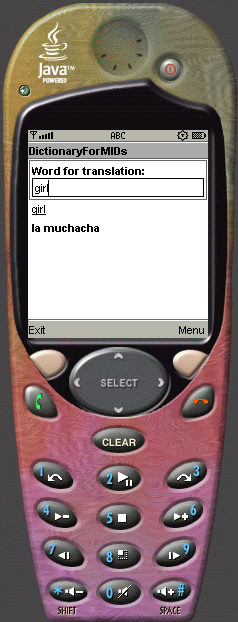
|
This was an example for an English to Spanish translation. |
For changing the translation direction, select in the Menu "Settings":
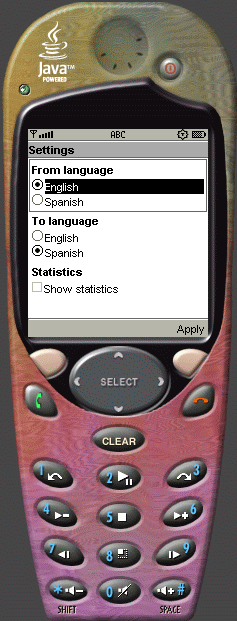
|
This is the setting for translating from English to Spanish.
If you want to translate from Spanish to English, you set "From language" to
Spanish and the "To language will automatically jump to English". Activating "Show statistics" will display on the translation screen some interesting information such as the time needed to find a translation and the available free memory of the cell phone/PDA. "Incremental search" activates the incremental search feature (deactivated by default). With incremental search, the matching translations are shown while typing. Incremental search requires a fast device. Press "Apply" when you are done with the settings. The new settings will take effect immediately, there is no need to restart. |
The info-dialog contains some informations about the configurated dictionary and of course about DictionaryForMIDs:
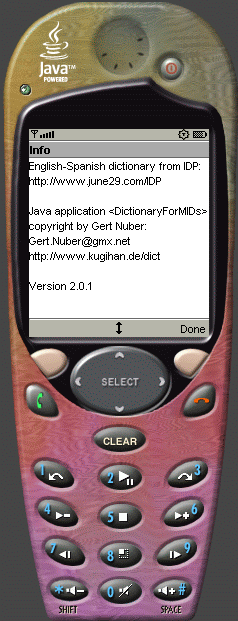
|
Note that some more information is shown when you scroll downwards in the dialog. For contact of the DictionaryForMIDs team, please see contact |